Showing posts with label tools. Show all posts

Friday, 25 April 2014

Don't be outfoxed. Foxit!

Several months ago I was ranting about a problem with my browser; it had frequent problems and I suspected that it had something to do with Adobe software incompatibility issues. PLN to the rescue, and Cherry Matthew mentioned that he'd stopped using Adobe Reader some while ago and had opted for something called Foxit instead. 

And there I was thinking that Acrobat was the only free pdf reader available! Silly me. After the usual barrage of Q&As, I decided to put it to the test. I might have tested a few others, but I honestly can't remember. Whatever the case, it was Foxit Reader which remains on the computer.

Originally, all I wanted was to have a PDF reader which wouldn't clash with my browser, and which was light and fast. But if you use pdfs as much as I do, then you may lament the difficulty of scrolling up and down pages, you may miss sticking Post-its or scribbling notes like you could do in books, and suffer the tediousness in keeping track of documents if you're in the habit of having several open at the same time, etc.

I, therefore, didn't take long to try out some of the tempting buttons on the toolbar and once I started using them, there's no turning back. I'll outline just some of them here. Incidentally, Foxit is also available on mobile devices. And, in case you're wondering, you don't need to have Foxit to be able to see the annotations; in other words, they can be seen by other readers.

Snapshot of some Foxit capabilities


Typewriter


Type directly onto the document. Great for writing answers on exercises.


Note


Pin a note. Unlike Post-its, these aren't likely to disappear! This and the typewriter function are probably the ones I use most. The great advantage is that it can be moved out of the document, so you can have notes on both sides of the screen, away from the original words/images. What you can't do is to edit individual words within the note; for example, if you wish to highlight some words or use a different font, you can't.

I've requested this function so I'm hoping Foxit can and will allow it. Another function I've requested is to be able to write phonetic scripts, something which isn't supported right now.


Highlight


For those of you who are fond of using markers, fret not! This one's especially for you. There are two places you can do this from - in the comment menu, it's on the left, and in the home menu it's towards the centre. You can also change the colour & opacity by right-clicking on your highlighted area, then choose properties.


Drawing


You can draw circles, squares, rectangle, polygon, you can draw lines or arrows, multiple lines or freeform.


Textboxes and Callouts


These have to be within the document but have the added advantage of giving you the ability to edit individual words within the box (see Note section above).


Pin an image


You may wish to include an image on the document. You can do this by using the Image Annotation on the right of the toolbar. To see the original size, however, you'll have to click on the Image Annotation button, right click on the image, choose properties. Go to Settings.


Bookmarks


Adding a bookmark is easy. You can use the functions on the navigation panel on the left, on the top toolbar in home menu, or Ctrl B. However, I find moving the bookmarks up or down somewhat problematic as Foxit has the habit of nesting the bookmark within where you drop it off. The way I get around this problem is to move it all the way to the top and then move it down again to where I want it.

There isn't a sort function either. To avoid these problems, remember that Foxit adds the new bookmark after the one you last clicked on. In other words, before you add a bookmark, click on the bookmark after which you want to add the new one.

Nested bookmarks on Foxit


Navigating the document


I used to find navigating on PDFs a messy chore on Acrobat. Foxit's hand function is wonderful - works like a touch screen - so much so that I often try to use it on Google Docs and feel disappointed when I realise that the capability doesn't exist there!

Alternatively, you can just use the standard page up/down or the arrow up/down for more minuscule movements.

Furthermore, Foxit allows tabbed browsing, so jumping from one document to another is a breeze; just remember to save your modifications although you will be reminded if you have made any unsaved changes.
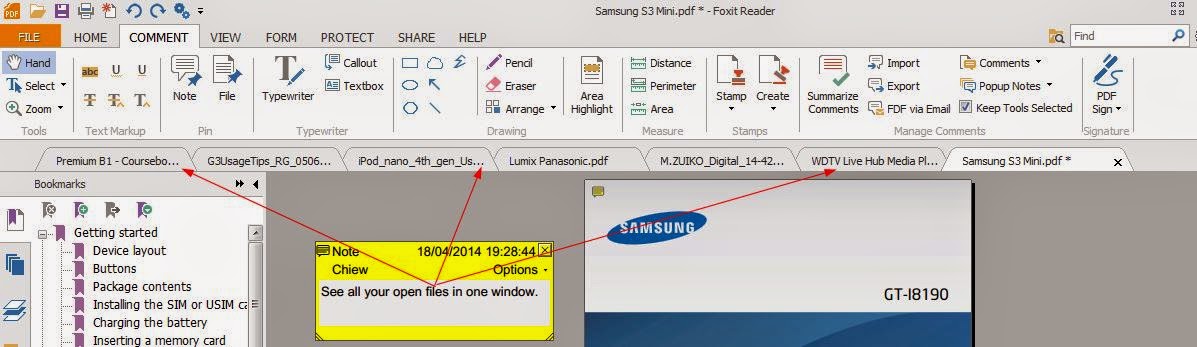
Tabbed browsing on Foxit Reader


Printing/Sharing


Of course, you may not want to share all the annotations you've made on the document. You may want to share a document and your notes with a colleague or you may want to print some pages (without your comments) for your students. You have 3 options of printing: document, document & annotations and annotations only. Having a toggle function where you can make the annotations disappear would be great if you want to beam up, say, some exercises, and then toggle on the answers. I've also requested this feature.


Other functions


There are loads of other buttons you can play with. You can link to websites, insert video, copy texts and images, etc. Copying doesn't always work because of the nature of the pdf format. Having said that, it's certainly easier to copy on Foxit than Adobe! You can either select text or do a snapshot. If I managed to copy texts, what I usually do is to paste them onto Notepad and rectify any discrepancies.

Manual

For the official manual, click here.


Feedback


So, what do you think? Are you using Foxit already? If you are, what do you most like/dislike about it? If you aren't, what do you find most attractive about it?


Sunday, 15 May 2011

Is this the best interactive multilingual dictionary?

ELT EFL ESL ESOL CLIL Resources, Games, Activities: Learn while you browse

When Russell Stannard says Lingro is the best site he's discovered this year, then one can't help but to sit up and take notice. And took notice was what I did and duly put it through its paces. Russell, as usual, has done a fantastic training video on it, and you can watch it here.

Lingro is basically a dictionary, but a dictionary with a difference. It's almost like having a dictionary beside you while you surf the web, except searching is almost instant. Here are its features:
  • It allows you to load a web page, or a document (.txt, .doc or .pdf)  and it makes all words of the page clickable.
  • It claims to have 8 million translations in 11 languages.
  • If you just want a plain old dictionary, it claims to be the fastest multilingual dictionary on the web. Definitions appear as you type.
  • It remembers all the words you look up, allowing you to review and study them
  • It also keeps the sentences in which the word you looked for appeared
  • You can also play games with your stored words
  • You can organise your words into different lists
  • If a word isn't in the dictionary, you can collaborate by adding the meaning. I've already added some.
Russell was right, Lingro is indeed fantastic. However, perfection doesn't exist, so expect the odd problem here and there, such as occasional sluggish response (especially in Chrome - the problem Chrome has with Flash is quite well-known). Here are a few other reservations I have:
  • Although you can browse around a website within Lingro, you'll have to remember that to follow a link, you'll need to click the little green button which appears above the link you hover over, and which says 'Click here to open link', because, if you click on the original link, it will presume you're looking for the meaning of the word you happen to click on!
  • It is only capable of looking up single words, not phrases, nor even phrasal verbs.
  • Each time you look up a word, it's stored on your word history, even if you'd already looked it up before. Allow me to explain. Imagine you looked up the word 'consigna'. Maybe you clicked on it twice. You go to your word lists page, and you'll see 'consigna' in your word history list. You drag it to your 'Spanish' list. Then, maybe you click it again, just to check. Now, you drag the word from the history to the bin as you've already kept it on your 'Spanish' list. But, you'll find that the word is still on the history list! That's because since you've clicked on it a total of 3 times, you'll have to drag it to the bin 3 times! Somewhat of a pain, really.
  • The sentence history is on a separate page. It would make more sense to be able to see the sentences together with the word list.
Remember that to be able to save your words, you would need to log in. I had trouble finding where to do it! It's placed (misplaced, more like it) at the bottom right.

ELT ICT ELL CLIL EFL ESL Tools, Resources, Using Lingro multilingual dictionary

Thanks to Russell Stannard for discovering this site. To try Lingro, click here. I think learners would love this site!

Out of Our Minds: Learning to be Creative    Out of Our Minds: Learning to be Creative    Delta Teach Dev: Teaching Unplugged: Dogme in English Language Teaching

Friday, 13 May 2011

How to create an interactive mind map for use in the classroom, Mark II

When I published this the first time, Blogger had a crash, which lasted for two days. They had to delete some posts (including mine), but subsequently restored them. I'm not sure if the restored version is trustworthy, so I'm re-publishing this article. I also decided to add more ideas on how to use mind-maps as I know a lot of teachers just want all their stuff served on a silver platter! ;-)

I have just discovered this nifty mind-mapping tool, so I decided to put it to a quick test. It's called Bubbl.us.There are lots of things you can do with it and it's user-friendly, so it's quite easy to use. In any case, if you're in doubt, they have a comprehensive help page. If you still have problems, just write a comment below or email me.

You don't need to have an account with them to start using it. Click start, and begin clicking and typing! Among the things you can do are undo (but not redo), copy & paste, drag, change colours and size of bubbles, and linking manually.

When you've finished, you can print it.

However, if you have an account - it's free and easy as pie to set up - you can save your mind map, and share it by linking or embedding it on your own site.

I won't go into all the details as they do it better on their help page. As an example, I did a map on Asking Questions, first seen on Teaching students to ask questions, and embedded it here. To enlarge, click on the + sign on the top left, or try the scroll knob on your mouse.

There's just a slight niggle I have about it, though. When you start the tool, you may get, like I did, Adobe Flash Player asking permission to store information on your PC. I'm not sure why, so I refused it permission, but, as you can see, it didn't prevent me from creating a mind map.

So, what do you think? Do you like it?

Here are some ideas on how you can use mind-maps:

  • Use it to teach pronunciation: you can do phonetics (see example of partial mind-map below), rhyming words, etc.
  • Pronunciation of the ending of regular past simple
  • Spelling rules, for example, plurals (see my post on plurals)
  • Irregular past tenses (group similar verbs, e.g., grew-grown, flew-flown, knew-known)
  • Get to know each other by doing a personal mind map (hobbies & interests - past & present, family, places travelled, etc.). Students can do it at home, then in class, beam it up and have them guess who the map belongs to.
  • Group tasks. You can also map the tasks first, and the students decide themselves which tasks they prefer.
  • Phrasal verbs
  • Idioms
  • and the most common usage - vocabulary. Encourage them to do their own at home. You can review them at random in class, and brainstorm additions to their lists.
Some people will say that digital mind maps defeat their original purpose, that each map is individualised: each one does it in their own way, the crazier it is, the better they will remember what was written. Well, if they prefer, they can print it out, and then add their own illustrations, for example.

If you only have 1 computer in class, you can make the mind-mapping a whole-class activity, but if there are more, do it in groups. Then, you can compare them and get the students to bounce ideas off each other.

 If you have other ideas on how to use mind maps in class, why don't you share it with us?


Related posts: