Friday, 15 October 2010

Sounds of English, short vs long vowel /ɪ/ /i:/

Chiew's CLIL EFL ESL Blog: Sounds of English

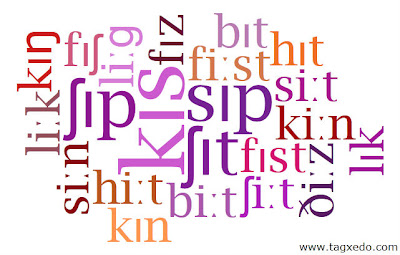
Continuing the series on the sounds of English activities, here's yet another one. This is to practise the short vowel ɪ and the long vowel i:

It's a very important difference, and learning it well may save you from future embarrassments. See The Man Went To Malta.

Click on the image above to begin the game. Try as many times as necessary for you to get 100% right.

If you want to see your name appear on the scoring sheet, you'll have to register before playing. Remember your nickname & password for all my other games which are hosted on Purposegames.

Either way, please leave a comment, stating your score (percentage and time).

You may also like these:

Rhyming Slang Game
Rhyming Words Game
Pronunciation of Regular Past Simple
Cockney Rhyming Slang

Look under the category English Sounds for more pronunciation activities.

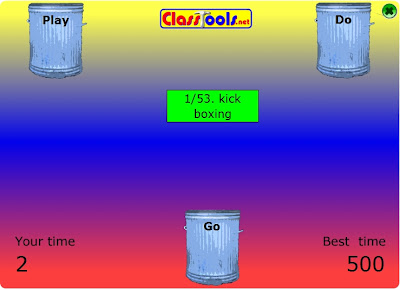
Sports: Play, Do, or Go? Dustbin Game

Learners often have problems with which verb to use with sports and games. We use either go, do or play with most sports, but how do we know which to use?

Generally, with competitive activities, we prefer 'play'. Under this category, we include all ball sports (football, handball, volleyball, golf, rugby, etc). Also included are table games such as cards, chess, table tennis, snooker, and bingo. We use play with badminton and computer games, too.

Note that we use 'play' with 'game': Would you like to play a game of chess? But, we say 'do an activity': What kind of activities do you do at the weekend?

For most recreational activities, or a non-team sport which does not involve the use of a ball, we prefer 'do'. Examples are aerobics, athletics, gymnastics, weights (weightlifting), martial arts (karate, judo, etc), yoga, exercise.

For sports which you can practise individually, we prefer 'go'. When we use go, we add '-ing' to the word. Eg, we say, 'go swimming'. Examples for this category are jogging, windsurfing, horseriding, fishing, dancing, snorkelling, etc.

Are you ready to put yourself to a test? Drag the sport to the correct dustbin. The score at the bottom left is the time you take, so the lower it is, the better you are.


Chiew's CLIL EFL ESL Blog: Play, go or do a sport

Thursday, 14 October 2010

Cockney Rhyming Slang Game

Chiew's CLIL EFL ESL Blog: Cockney rhyming slang

Yesterday, I published a rhyming word game. Continuing the series on sounds of English activities, I've created a trickier one. This is more suited for higher level students. The clues are expressions of Cockney Rhyming Slang. I'd recommend your reading my post on Cockney slang first before attempting this game. For each clue, you'll have to select the image whose word is represented by the rhyming slang.

Click on the image to begin the game. Just like the other rhyming game, some of the images may not be plain obvious, so you might need a few attempts.

If you want to see your name appear on the scoring sheet, you'll have to register before playing. Remember your nickname & password for all my other games which are hosted on Purposegames.

Either way, please leave a comment, stating your score (percentage and time).

You may also like these:

Pronunciation of Regular Past Simple
Cockney Rhyming Slang

Look under the category English Sounds for more pronunciation activities.

Sports - Double Puzzle

There are quite a few free websites which allow you to create your own activities, and one of those is Puzzlemaker. Here, you can make your own puzzles, such as Word Search, Double Puzzles, Maths Squares, Cryptograms and Mazes. The only price you pay is a link to the website at the end of the document. As an example, I've created a double puzzle on sports. 

First, you unscramble each of the clue words. Then, using the circled letters, unscramble these for a hidden message.

Before printing it, think carefully before you do it. Do you really need to? If you have a projector, you can beam the document up, and have a competition to see who is the quickest to solve the puzzle. Have a look at this other activity, too: http://aclil2climb.blogspot.com/2010/09/name-these-sports.html

This document can also be downloaded from Scribd.

Wednesday, 13 October 2010

Rhyming Words Game

Chiew's CLIL EFL ESL Blog: Rhyming Words

Click on the image to begin the game. You'll have to find the image whose word rhymes with the clues. Some of the images may not be plain obvious, so you might need a few attempts. I'll give a hint for one of them: it's not a bucket!

If you want to see your name appear on the scoring sheet, you'll have to register before playing. Remember your nickname & password for all my other games which are hosted on Purposegames.

Either way, please leave a comment, stating your score (percentage and time).

You may also like these:

Pronunciation of Regular Past Simple
Cockney Rhyming Slang

Look under the category English Sounds for more pronunciation activities.

Tuesday, 12 October 2010

How to create a screenshot of part of your screen?

Most of you using Windows will probably know that you can take an image of your screen by pressing something like ALT and SCRN PRNT together. This is called taking a screenshot.

What this does is basically copy an image of your current screen. You then have to paste it on an image editor, such as PAINT. There might be superfluous information on the image that you would like to remove, but here is where it gets complicated for some people.

Even for someone like me, it gets a little tedious. I would paste it using Paint. I might add notes or highlight some parts of the screen. Then, I would save it in a lossless format, such as TIFF.

Having done that, I'd reopen it on another editor, Microsoft Office Picture Manager, crop the extra bits out, and save it.

Perhaps I can crop it using PAINT, too, but I have never figured a way with which I had been satisfied.

If I need the image in jpg format, I would then reopen it using IRFAN VIEW (my preferred image viewer) and save it in jpg format.

All somewhat of a pain in the neck.

Then, a few days ago, I discovered a nifty freeware tool which does all that, and more. It's called Greenshot. You can download it from here.

When you've installed it, you'll see a Greenshot icon on the bottom right of your screen (system tray). Note that once installed, Greenshot takes over the PRINT key; in other words you can no longer take a screenshot and paste it using PAINT. However, you can change your preferences and tell it not to launch upon startup.

There are four basic ways Greenshot allows you to take a screenshot. If you click on the PRINT key, you can select a part of the screen to be captured. Greenshot calls this REGION CAPTURE. After starting region mode, you will see a crosshair appearing where your mouse is. You don't need to worry too much about this. What you do is move your mouse to the corner of the region you're interested in, click, hold, and drag to define the rectangle you want to copy.


When you release the mouse, the image is copied, and Greenshot's image editor automatically opens (this default can be changed in preferences).

Here, you can add shapes and texts, crop, highlight, and even obfuscate. However, I did find a few weaknesses. The most annoying thing is there isn't a way to undo your edits! Isn't that just amazing? Also, editing texts could do with more versatility. Changing fonts isn't very straightforward, and you can't justify your text.


If you use Shift + Print, you'll capture the last region. For example, in the first image above, I first clicked on Print so that I get the crosshair. To capture the screen plus the green lines, I then click on Shift + Print.

To capture the window which is currently active, use Alt + Print, and to create a screenshot of the complete scree, use Control + Print.

Having edited your screenshot, you can then print it, or save it in jpg, gif, png or bmp format.


Well, until I find something better, I will be using this for my future screenshots! Will you? You can download Greenshot from here.

Friday, 8 October 2010

Our Solar System: Planets (Game)

Chiew's CLIL EFL ESL Blog: Planets

How fast can you identify the planets in our solar system? Click on the image to test yourself in a simple point-and-click game.

Image source: NASA/JPL - "The planets are shown in the correct order of distance from the Sun, the correct relative sizes, and the correct relative orbital distances. The sizes of the bodies are greatly exaggerated relative to the orbital distances. The faint rings of Jupiter, Uranus, and Neptune are not shown. Eris, Haumea, and Makemake do not appear in the illustration owing to their highly tilted orbits. The dwarf planet Ceres is not shown separately; it resides in the asteroid belt between Mars and Jupiter."

If you want to see your name appear on the scoring sheet, you'll have to register before playing. Remember your nickname & password for all my other games which are hosted on Purposegames.

Either way, please leave a comment, stating your score (percentage and time).

You may be interested in these, too:

Why do we have seasons on Earth?
Phases of the Moon